
Xiaomi TV F2: what it ships with and what can come off
· 6 min read
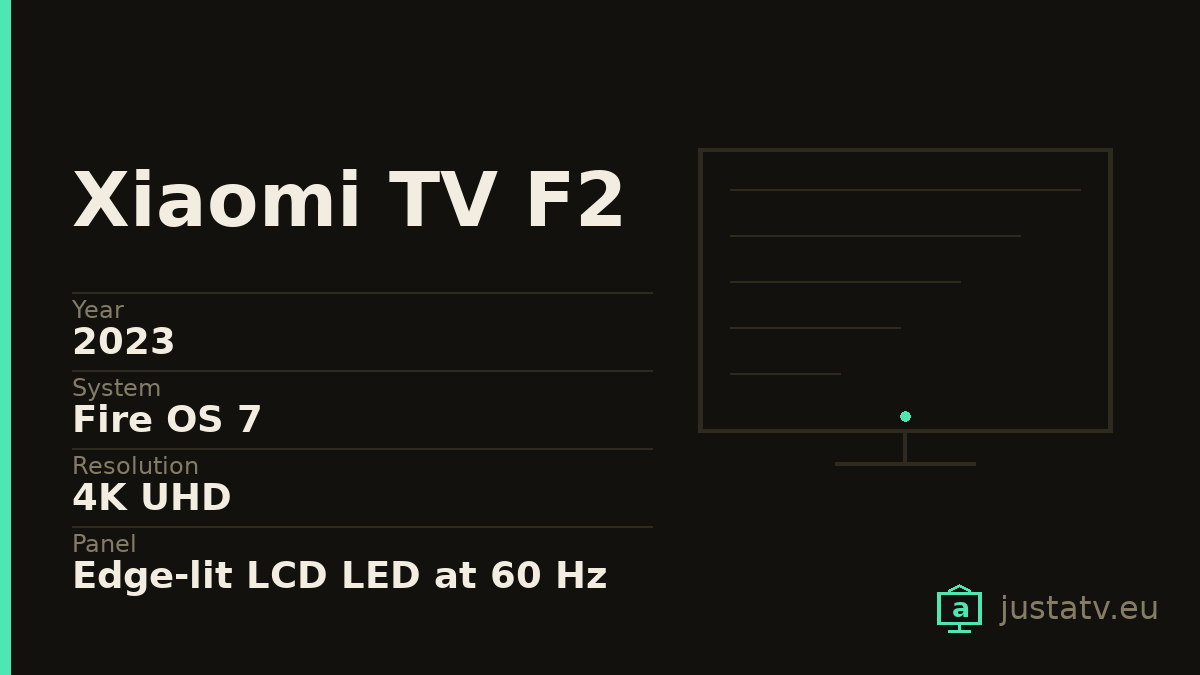
| Year | 2023 |
|---|---|
| System | Fire OS 7 |
| Resolution | 4K UHD |
| Panel | Edge-lit LCD LED at 60 Hz |
| Brightness | 300 nits quoted |
| HDR | HDR10 and HLG; Dolby Vision and HDR10+ only at 50" and 55" |
| Memory | 2 GB of RAM and 16 GB of storage |
| Sound | 12 W + 12 W with Dolby Audio and DTS Virtual:X |
| Processor | MediaTek MT9020, quad-core A55 at 1.5 GHz |
| Viewing angle | 178° |
| Sizes | 43", 50" and 55" |
Nearly every page in this section is about a set running Google TV. This one is not. The F2 was the first Xiaomi television built on Fire TV, Amazon's system, and that changes almost everything worth looking at: the package names, the store, who decides the home screen, and what happens when an update arrives.
If you have just read the page for a Google TV set, take nothing here for granted.
What it is, in two lines
A 4K edge-lit LCD panel at 60 Hz, with 300 quoted nits and a 178° viewing angle. Inside, a MediaTek MT9020 with four A55 cores, 2 GB of RAM and 16 GB of storage, running Fire OS 7.
One detail worth knowing before anything else, because almost nobody mentions it: the HDR is not the same across sizes. The 43-inch stops at HDR10 and HLG; the 50 and 55 add Dolby Vision and HDR10+. If you bought the small one for Dolby Vision, you do not have it, and no setting will fix that.
How clearing out a Fire TV differs
Fire OS is Android underneath, so ADB works the same and the commands are identical. What changes is everything above it:
There are no Google packages. No com.google.android.tvlauncher, no
com.google.android.gms. If you have read a Google TV guide and go looking for
those names on your F2, you will not find them. Here the prefix that matters is
com.amazon..
There is no Play Store. The store is Amazon's Appstore
(com.amazon.venezia). That has a practical consequence: if you overdo the
clear-out, reinstalling is not always as trivial as on a Google TV, because the
catalogue is smaller.
The home screen belongs to Amazon. And it is a good deal more commercial than Google TV's: the top row is not always what you were watching, but what Amazon wants to show you. It is the main reason people end up on pages like this one.
Updates are more insistent. Amazon reinstates what you disabled more often than Google does. It is not that the method fails: it is that you may have to do it again after a large update.
How to tell whether this page is about your set
Under Settings → My Fire TV → About you will find the model and the Fire OS
version. With ADB connected, getprop ro.product.model and
getprop ro.build.version.fireos give the same thing without walking through
menus.
Check the free storage too: with 16 GB the margin is not that of a modern high-end set, though it is twice what the tightest machines have.
What ships on it
Amazon's. The launcher (com.amazon.tv.launcher), the store
(com.amazon.venezia), Prime Video and a good number of services carrying the
com.amazon. prefix. It is most of what is there, and the part that decides
what you see when the set comes on.
Everybody else's. Netflix, Disney+ and the rest arrive installed, and the remote usually has dedicated buttons. The button stays after you remove the app; it simply stops going anywhere.
Xiaomi's. Very little. On this set the manufacturer supplies the panel and the casing; the software is Amazon's almost entirely.
What comes off without much thought
Streaming apps you do not use. With 16 GB, on top of the noise on the home screen, each one takes up space you are going to need.
The games and associated services that ship on it and that you have never opened.

What to look at first
On Fire TV, before touching a single package, two settings remove a good share of the noise and carry no risk at all: under Settings → Preferences → Privacy Settings you turn off device usage data and interest-based ads. Start there: it is half the job, with no ADB and nothing you can break.
What not to touch
The launcher (com.amazon.tv.launcher), as long as you have no other one
installed and working. On a Fire TV this is more delicate than on a Google TV,
because there are fewer alternatives and Amazon's store does not offer them.
The store (com.amazon.venezia): without it you cannot reinstall anything you
remove, and on Fire OS that is a one-way trip.
And anything to do with the remote and its bluetooth pairing: if the remote stops answering on a set with no accessible ports, recovery is awkward.
Write down what you remove
This advice holds for any television, but on a Fire TV it counts double. Since Amazon reinstates things with updates, six months from now you will want to know exactly what you disabled, and you will not remember.
Keep the list in a text file, with the full command beside each entry. When an update puts the home screen back the way it shipped, restoring your version is a copy and paste rather than an afternoon repeating the research.
And save the complete package list before you touch anything. It is the only faithful picture of how your set arrived from the factory, and if something goes wrong it is what tells you what used to be there.
What you actually notice
A considerably less commercial home screen, which on a Fire TV is a bigger change than on a Google TV precisely because it starts from further away. Free storage recovered, which with 16 GB is welcome. And less background activity.
What does not change: the 300 nits, the panel's 60 Hz, or whichever HDR your size happens to have. None of that depends on the apps.
If the hardware is simply not enough
With 2 GB of RAM and an MT9020, this set will not be quick however much you empty it. If it still struggles after the clear-out, the sensible way out is to leave it as a screen and put an external player in front. The panel stays the same, and the panel is what you paid for.
All of this comes undone
Packages disabled over ADB come back with one command, and a factory reset returns the television to the state it left the box in. On Fire TV, expect as well that some update may hand you back one of the things you removed.
If you own one
The app list from your own F2, exactly as the set reports it, is especially valuable: there are far fewer Fire TV entries about than Google TV ones, and the package names look nothing alike. If you feel like sending it, the next person searching for this model finds the work already done.